Yes Or No Wheel | Simple & Fun Tool To Choose Between Yes Or No
1- What Is This Decision-Making Tool?
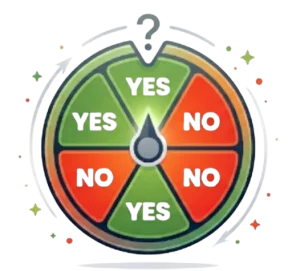
The Yes or No Wheel is a simple and fun tool that helps you choose between yes and no. It is also known as the Yes No Picker Wheel and is inspired by Picker Wheel.
To use it, simply click the SPIN button. The wheel will spin and provide a random answer, helping you make everyday decisions quickly and easily.
This tool offers two input modes to suit your needs. The first mode provides only Yes or No as possible answers, while the second mode also includes Maybe. You can choose the mode that best fits your preference
2- How Does It Work?
This tool makes everyday decisions easier by generating a random result with just a spin. You can use it whenever you need a quick answer without asking someone else to decide for you.
Follow these simple steps to get started:
1. Choose an Answer Mode
- Yes or No: Get one of two possible answers.
- Yes, No, or Maybe: Include a third option for more flexibility
yes or no
yesno or maybe
2. Select the Number of Input Sets
Choose between 1 and 5 input sets based on your preferences.
3. Spin to Generate a Result
Click the SPIN button or press Ctrl + Enter on your keyboard to start the spin and generate a random answer.
4. View Your Result
Once the spin ends, your answer will appear on the screen. Each new result is added to the results list, allowing you to keep track of previous outcomes.
5. Spin Again When Needed
Repeat the process whenever you want another answer.
6. Adjust the Display
Use the toggle button to hide the input settings and move the wheel to the center of the screen.
7. Reset the Results
Click the reset button to clear the accumulated results and start fresh.
The process is quick and straightforward. You can also customize the tool, review your previous results, and switch to full-screen mode for a more convenient experience.
3- Turn on Mystery Mode
You can make the experience more surprising by enabling one of the two mystery options:
- Mystery Wheel: Replaces all the labels on the wheel with question marks (?) so you cannot see the available choices.
- Mystery Result: Keeps the result hidden until you press Enter or click to reveal it.
4- Customize the Wheel
You can personalize the wheel by adjusting its settings to match your preferences. To access these options, click the Settings button at the top of the page. On mobile devices, open the Menu and select Settings. The settings panel will appear beside the wheel on desktop or below it on mobile.
Here are the main customization options available:
- Spin Behavior: Control how the wheel spins by adjusting the speed (Level 1–10), duration (1–30 seconds), spin count, and initial angle. You can also enable a manual stop button, set the initial spinning behavior, and customize the spin button’s animation and color effects.
- Sound Settings: Turn sounds on or off and choose different sounds for the start, spinning process, and end of a spin.
- Result Effects: Enable or disable the confetti animation displayed with results.
- Page Color: Change the background color of the entire section.
- Tool Background: Adjust the background transparency of the wheel area. Premium users can also add a custom background image.
- Wheel Colors: Choose from the available color themes to change the wheel’s appearance.
- Spin Button: Premium users can personalize the spin button to create a custom look.
- Banner and Logo: Premium users can add their own banner or logo to personalize the tool further.
Premium customization also provides additional options for personalizing wheel sounds, colors, and background settings.
5- Customize the Title
Adding your own title and description helps visitors understand the purpose of your wheel. You can personalize the tool title, its description, and the result heading to match your needs.
To make these changes, click the Title button in the Inputs section, then enter the text you want to display.
You can also add multiple result titles. The wheel displays them in sequence, changing to the next title with each spin. For example, the first spin shows Title 1, the second shows Title 2, and after reaching the last title, the sequence starts again from Title 1. To begin the sequence again from the first title, click Restart Sequence.
The tool title and description appear in the upper-left corner of the page. The result title is displayed after the wheel finishes spinning and reveals the outcome.
6- View Result History
Click the Show All Results button to review the answers generated during your current visit. This lets you check every result recorded since your first spin.
You can use the toggle button to switch between the list of results and the score view, which shows how many times each result has appeared.
To share your results with others, click the Results Link button to open a dedicated results page. If you want to start fresh, select Clear Results to remove the saved recor
7- Share Your Results
You can share your generated results in two different ways, depending on whether you want to share one answer or your complete result history.
- Share a Single Result: When the wheel displays an answer, click the share icon to share that particular result with others. This option is available when the result appears.
- Share All Results: To share your complete result history, open the results page. From there, you can generate a shareable link or download an image of your results to save or share with others.
8- Enter Full-Screen Mode
On desktop computers and tablets, you can click the full-screen button to switch to full-screen mode or return to the normal view.
When full-screen mode is enabled, the wheel becomes larger for a more focused experience, and the input section is hidden. However, you can still click the Show All Results button to review your previous results.
9- When to Use This Tool
This tool can be helpful when you need to make a simple choice and feel equally comfortable with either outcome. Rather than spending too much time thinking about minor decisions, enter a clear question, spin the wheel, and use the random answer as a guide.
Here are a few situations where it can come in handy:
Everyday Choices
Use it to make small daily decisions without unnecessary overthinking. For example:
- Should I order food instead of cooking tonight?
- Should I work out today?
- Should I watch one more episode of my favorite show?
- Should I purchase something I’ve been considering?
- Should I explore a new hobby or activity?
Classroom and Group Activities
Teachers, students, and group organizers can use the tool to make activities more engaging. It can help decide whether to move on to another question, give participants an extra attempt, repeat a task, or introduce a fun challenge.
Workplace and Team Decisions
During meetings or team-building sessions, the tool can help settle minor, low-risk choices quickly. For instance, you could use it to decide whether to take a brief break, try a bonus activity, continue a discussion, or add another round to a team game.
Breaking a Tie Between Two Options
Sometimes, you may find both choices equally appealing and struggle to pick one. A random answer can give you a starting point, help you move past indecision, and make it easier to settle on a small decision.
Keep in mind: This tool is best suited to casual, low-stakes choices. Important decisions involving health, safety, finances, or other serious consequences should be based on careful thought and reliable information rather than a random result.
10- How to Ask Better Questions
To get the most out of this tool, think of a clear question before spinning and decide in advance how you will treat the result. A little preparation can make the experience more useful and help you avoid unnecessary hesitation.
Keep Your Question Simple and Specific
Ask something that can be answered meaningfully with yes or no. For example, “Should I go out for dinner tonight?” is more straightforward than asking, “What should I do tonight?” A focused question makes the result easier to interpret.
Set a Rule Before You Spin
Decide whether you will follow the first answer or allow a limited number of spins, such as the best of three. Choosing your rule beforehand helps prevent repeated spins simply because you dislike the initial result.
Choose the Maybe Option When Appropriate
Some questions do not require an immediate yes-or-no decision. When you want to leave room for uncertainty, select the Yes, No, or Maybe mode. This gives you a third possible outcome when neither a definite yes nor a definite no feels right.
Notice Your Feelings About the Result
Your response to the answer may help you understand your own preferences. For instance, if the wheel lands on “No” and you feel disappointed because you wanted “Yes,” that reaction might reveal what you were hoping for all along.
Use this tool for entertainment and everyday decisions rather than serious matters. Choices involving health, personal safety, finances, or legal issues require careful consideration and trustworthy information, not a random answer.
For additional guidance on making thoughtful choices, explore the American Psychological Association’s advice on making better decisions.
11- Fun Games and Party Activities
Adding a random spin to party games can make group activities more exciting and unpredictable. You can use the tool to decide whether a player should complete a challenge, answer a question, take another turn, or let the next person play.
For an even more entertaining experience, pair it with the Truth or Dare Picker Wheel. Start by spinning the wheel to determine whether a player must accept a challenge. If the answer is Yes, spin the Truth or Dare Picker Wheel to generate a random question or dare. If the answer is No, skip the challenge and pass the turn to the next player.
Using these two tools together adds variety to every round and lets chance decide what happens next, making the game more engaging for everyone.
12- How to Share and Manage Results
To share the spinner with others, click the Share button in the top-right corner of the page. You can generate a standard sharing link or create a Collect link that allows participants to submit their results.
After creating a link, copy it using the copy button or copy the link address manually, then send it to anyone you want to share the tool with.
If you use the Collect option, you can access the participants’ submitted results by opening the relevant file in your saved files.
You can also share the tool with friends and family who might enjoy using it to make quick decisions or add some fun to their activities.
13- Explore More Ways to Make Decisions
Looking for more choices than just Yes, No, or Maybe? Try the Picker Wheel to add your own options and let the wheel randomly select one for you.
If you prefer a quick decision method without using a spinner, try the Coin Flip Simulator. Simply flip a virtual coin and use heads or tails to help you choose between two options.
14- Share Your Feedback
Have any suggestions or noticed a problem while using this random decision tool? Please send us your feedback. Your ideas and reports help us identify issues, improve the tool, and provide a better experience for everyone.
15- Common Questions and Answers
Is the Result Completely Random?
Yes. Each spin randomly chooses one of the available options displayed on the wheel. This makes it a simple way to let chance help you make an everyday decision.
How Do the Two Answer Modes Differ?
The Yes or No mode offers two possible outcomes: yes or no. The Yes, No, or Maybe mode includes a third option, giving you more flexibility when you are unsure or prefer not to make a definite choice.
Is This Tool Suitable for Serious Decisions?
This tool is designed mainly for fun and everyday, low-risk choices. Important matters related to health, safety, finances, or legal issues require careful consideration and reliable information rather than a random result.
Can I Spin Again for the Same Question?
Yes, you can spin the wheel multiple times for the same question. However, it helps to decide your approach beforehand, such as accepting the first answer or choosing the best result from three spins. This can prevent you from repeatedly spinning just to get the answer you prefer.